Canva in the Classroom: Learning to Create, Creating to Learn

I want to begin by sincerely thanking everyone who supported me as I took the first step in sharing this blog more publicly. I’ve been incredibly moved by the kind messages and encouragement I’ve received—especially from friends and colleagues around the world. Your responses have truly humbled me and reminded me how powerful it is to share and connect through our work.

It’s moments like these that remind me of the quote in my email signature: Ubuntu – I am, because we are. This journey has never been just mine—it’s been shaped and strengthened by the community around me.

One message I received suggested I consider becoming a consultant. I had to smile at that—because it’s taken me seven years just to say out loud that I’ve been blogging! I’m not quite ready for that next step. Honestly, I find so much joy working with my students and supporting our school’s goals (and yes, sometimes gently encouraging us to stretch our goals and think bigger).

This week, a colleague stopped me in the hallway and told me how much she had learned from one of my recent ideas. She’d tried the clock matching game I shared with her own daughter—who had been struggling to tell time. It helped make the concept click for her in a fun and playful way. Moments like these are what keep me motivated.

Some colleagues have asked how I know so much about Canva. The truth is, I’ve been a Canva Pro subscriber for seven years—and I didn’t use it much at first. My real Canva learning curve came through my role as MSA Communications Lead, where I used it to create social media posts, newsletters, and content for our website.

I’ve also had access to Canva for Education for the last two years, but it’s only recently that I’ve started using it more and more in my teaching—to create worksheets, games, and other learning resources. I’ve been inspired by amazing educators who generously share their knowledge on social media—if Instagram offered PD certificates, I’d be drowning in them! One of the educators I’ve learned so much from is @teresakwant. She shares amazing Teacher Canva Hacks that have saved me time and sparked new ideas for my classroom.

Now I’m venturing into creating interactive lessons within Canva, and it feels like I’m finally unlocking its full potential—not just as a design tool, but as a powerful learning platform. This week, I stumbled upon a lesson from Canva’s Design School on creating persuasive posters (link here), which was a perfect fit for what my students are working on as they take action in their Cultural Studies class.

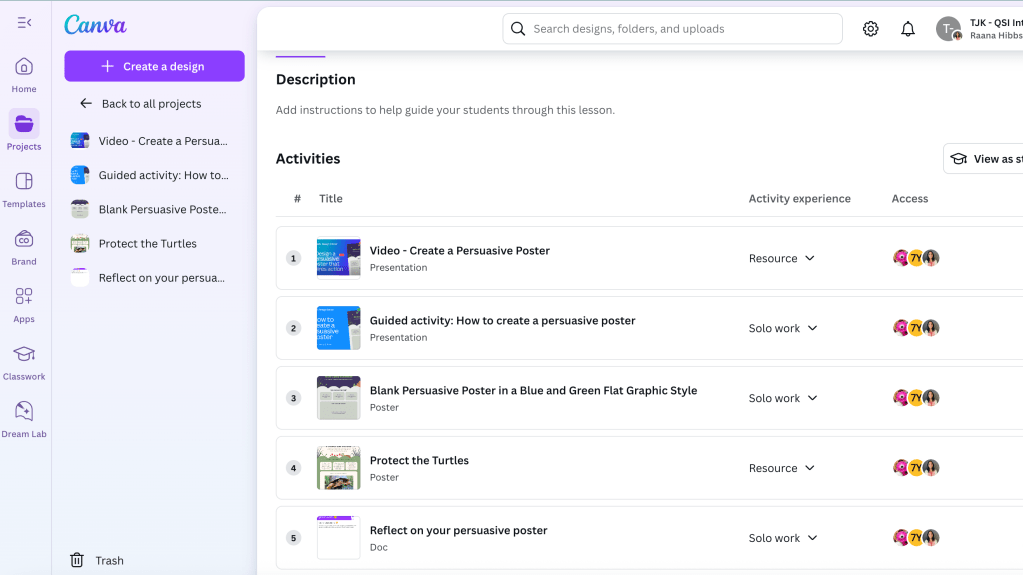
At first, I thought about sending my students directly to the Canva Design School course—but they’re only seven years old, and navigating the platform that way felt too complex. I looked for the lesson inside Canva for Education but couldn’t find it. So, I decided to recreate it myself as a lesson in our Canva Classroom.

This Canva Help article guided me through the process. I couldn’t find the video in the Canva YouTube app because this lesson launched this week, so I took a screenshot of the video, put it in a presentation and linked the video to that instead. I added “_popup” after “watch” and before the “?” in the URL to change the viewing experience to a fullscreen without distractions. Next, I added the lesson resources as solo work activities, so Canva automatically created copies for each student.

The next day, I introduced the lesson to my class and told them we’d be learning from a guest teacher—Mrs. Bel. I showed them the course in Canva Design School and explained that we’d be following the same course in our Canva Classroom. We watched the video together and practiced essential design skills—like changing font sizes, adding and resizing images, working with layers, and applying design styles. They especially loved exploring the different font styles and color combinations—it was the perfect opportunity to remind them how important it is to make design choices that match the theme and purpose of their poster.

The following day, I modelled how to change the poster template that was shared. After all, our students learn best when we model how to use technology with purpose and care. I was later able to add the poster model to the lesson as a view-only resource, so learners had access to an example as a visual support.

Students then began creating their own persuasive posters using the skills they had learned. What I loved most was how the structure allowed students to work at their own pace, sharing their solo work with me before moving on. I could give timely feedback and ask for edits or mark their work as complete.

This experience reminded me how important it is to set high expectations and explicitly teach the tools and techniques learners need to succeed. Instead of simply asking students to “make a poster,” we gave them the vocabulary, modeling, and guided practice to do it with purpose and confidence. For my early finishers, I awarded an “expert” badge and gave them the chance to become peer helpers—a proud moment for them and a big help to me!

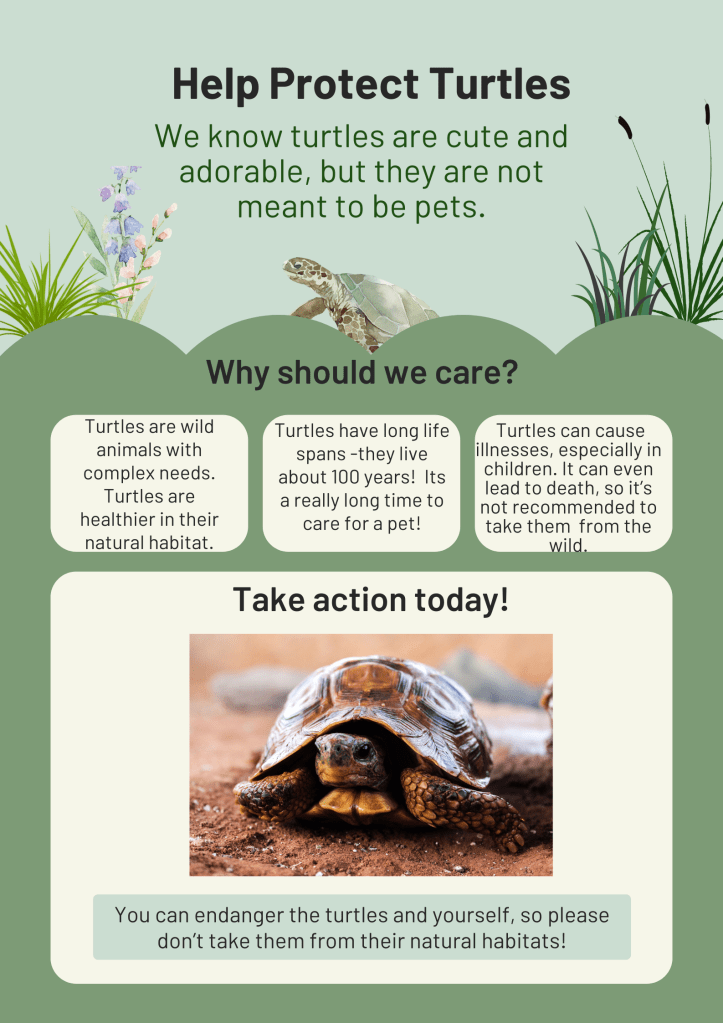
There was so much great learning packed into this experience. With permission, I’m sharing one student’s poster below. I’m so proud of the creativity, effort, and confidence I saw in my students this week.

Thank you again for being part of this journey with me. I’m learning right alongside my students—and that’s the best part.

From Idea to Interactive: Bringing Learning to Life with Canva Code (and saving precious teacher time too!)

If you had told me a year ago that I’d be coding my own games for class, I probably would have laughed. My experience with coding has been fairly limited: introducing my young students to Scratch Jr., and during lockdown, diving into creating Pixel Art Reveals using Google Sheets – a skill I picked up through many helpful YouTube tutorials and online workshops offered by generous educators. Since then, I’ve admired the potential of educational tech, engaging with it in various ways, but coding felt like a different realm – until recently, when Canva Code offered an opportunity to step back in.

With no real coding experience, I started small: a matching game to review telling time, connecting analogue clocks with digital time. I designed it with three levels of increasing difficulty, and to make it even more engaging, I added a Pac-Man style reward game after each level. In true coding spirit, the game took several iterations to get right—and I quickly learned the value of thorough testing before sharing with students. But the result? It felt like pure magic. My students were genuinely engaged, and their excitement inspired me to keep going.

Next, I created a 2D shape matching game, where students matched shape names with their attribute descriptions. I was inspired by Classnotes with Nicole (I recommend checking out her blog because she shares a free guide to creating Canva Code games and her EASY prompt is really helpful). It was a simpler build—time was tight—but it worked beautifully as a review tool, especially for my multilingual learners who benefit so much from that extra vocabulary support. Seeing them light up as they successfully matched the visuals with the words just hammered home what I already knew: games aren’t just a bit of fun; they’re seriously powerful learning tools in disguise.

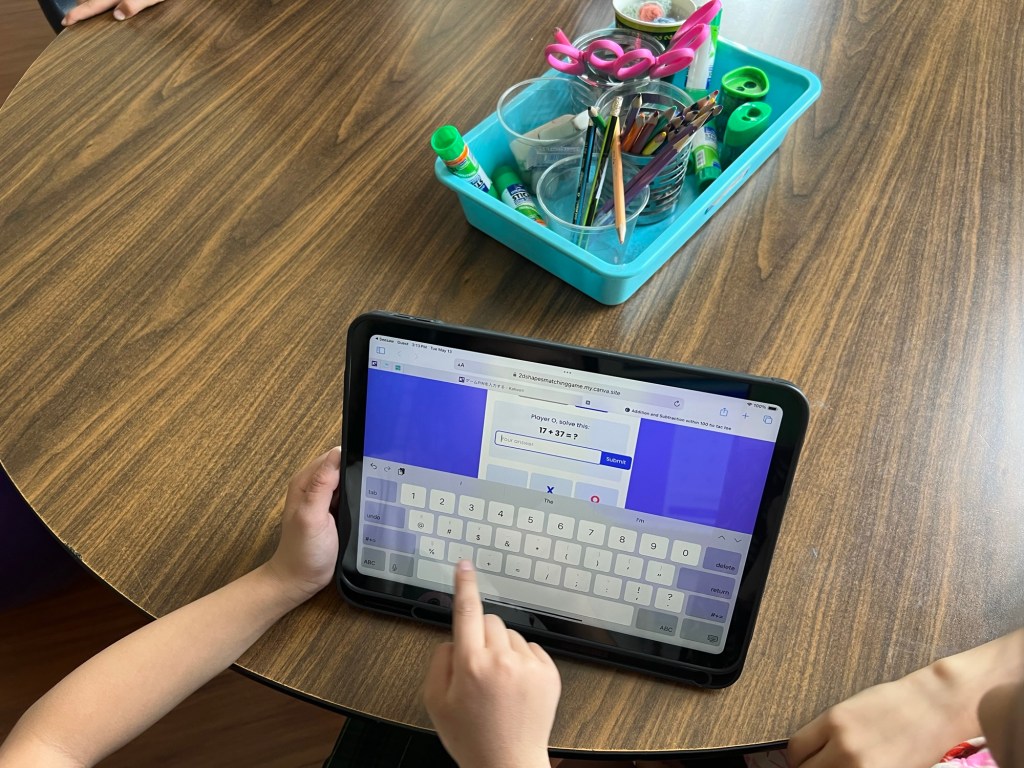
With two games under my belt, I wanted to try something new. As we approach the end of the year, building confidence in mental math is a key focus. So I asked Canva Code to help me create a 2-player tic-tac-toe game—with a twist. Before each move, students must solve a 2-digit addition or subtraction problem (within 100). Get it right, take your turn. Get it wrong, skip your turn. First to three in a row wins.

Now, the first attempt wasn’t exactly flawless – sneaky players could still try to click on a spot that was already taken. So, back to Canva Code I went, and like magic, it was fixed! Then, because every winner deserves a celebration, I added a burst of confetti for the champion and a clear, friendly landing page with all the instructions. The whole thing came together in under 20 minutes. Seriously! It’s quick, totally tailored to what my students need, and reusable – a far cry from those elaborate escape rooms I used to spend hours crafting that got played exactly once.

img_8773

The amazing Canva Code – along with a whole bunch of other super cool new features – will be released very soon! In fact, I even saw a post today hinting that some users (beyond the original first million) might already have access! It’s genuinely thrilling to think about how many more educators will soon have these incredible tools at their fingertips, making it so easy to design, tweak, and bring their awesome classroom ideas to life.

In the meantime, if you’re curious to see what I’ve created so far, feel free to dive in:

🎯 Memory Game for Teaching Time
🔷 2D Shapes Matching Game
➕➖ Addition & Subtraction Tic-Tac-Toe

This shift has been more than just practical—it’s been empowering. Canva Code has allowed me to build games tailored to my learners’ needs, in real time. And the best part? Their reactions. One student said it best:

“I wonder what she’ll ask Canva to code next?”

Learning is fun. And when I’m learning alongside my students, it becomes something even more powerful: joyful, shared discovery.

Unlocking Deeper Learning: The Power of App Smashing and AI in an elementary classroom

Technology is constantly evolving, and AI is undoubtedly here to stay. As educators, it’s our responsibility to remain perpetual learners, not just to keep pace but to empower our students to make informed choices and utilize technology effectively. I firmly believe that by modeling this behavior of continuous learning and a willingness to adapt, the learners I encounter will be inspired to cultivate the same crucial skills.

In my previous post, I shared our initial explorations into the world of AI and app smashing, detailing how we creatively combined Magic Student, Seesaw, and Book Creator. Today, I’m excited to delve into our next adventure: how we harnessed the power of Canva and Magic Student to plan and teach a poetry unit that culminated in a truly engaging Poetry Video Podcast.

Planning and Presentation with Canva AI:

Inspired by the free “Canva AI in the Classroom” course, I used the AI features within Canva to create two key poetry lessons: one focusing on the visual form of Shape Poetry and another exploring the concise structure of Haikus. For our Shape Poetry lesson, we the fascinating world of spirals after reading a captivating nonfiction book highlighting their presence in the environment.

To take it one step further, I asked Canva to help create presentations based on these lesson plans. This saved valuable preparation time and provided visually engaging materials tailored to the concepts we were exploring.

Empowering Student Choice with Magic Student’s Poetry Room:

These are the Magic Student Tools that were included in our Poetry Room. If you are a Magic School AI user, I have shared a template to the room below.

As my second graders prepared to embark on their own poetic journeys, I introduced them to a dedicated “Poetry Room” within Magic Student. This digital space offered them agency and support in their creative process. Some students eagerly utilized the Idea Generator to spark initial concepts for their poems, while others astutely used it for feedback on their developing ideas. This demonstrated a wonderful early development of their metacognitive skills as writers, making informed choices about the support they needed.

Collaborative Creation in Canva Classroom:

This is the template we created together using an exemplar haiku I wrote. We learned how to add a background, use text effects and layer elements, including text.

The next stage involved bringing their poetic words to life visually using Canva. We began by collaboratively creating a template within Canva. This was a fantastic opportunity to explicitly teach them how to utilize text effects and layer elements, fostering an understanding of design principles for a more polished final product. Once our shared template was established, I duplicated it for each student and assigned it through Canva Classroom. This allowed us to work simultaneously within the same slide deck, fostering a sense of community and shared creation. It was inspiring to witness the diverse ways students chose to enhance their poems visually. Some experimented with AI image generators within Canva, while others carefully selected graphics or photographs that resonated with their poetic themes.

Unexpected Inspiration: From Slides to Sound:

Our initial plan was to conclude the project with their visually rich poetry slides. However, during our Spring break, I dedicated an hour to exploring the “What’s new in Canva – March edition” webinar. This proved to be an unexpectedly transformative moment! I was particularly excited by the demonstration of Canva’s enhanced video and audio features, sparking an idea to take our poetry project a step further – into the realm of video podcasts.

Creating Poetry Video Podcasts:

Upon our return from the break, I found moments when learners were focused on independent learning to record each learner for our podcast. Using my MacBook’s microphone and Canva’s remarkable new “enhance audio” feature, we captured their voices reading their poetry and sharing their knowledge of poetry. The result was truly impressive – despite the recording taking place within a busy classroom environment, the enhanced audio clarity made it sound as if we were in a professional recording studio!

The journey of our poetry unit, from initial brainstorming with Magic Student to the creation of engaging video podcasts in Canva, has been a testament to the power of integrating AI and innovative digital tools. It’s been inspiring to witness my second graders not only deepen their understanding of poetry but also develop their digital literacy and creative expression in such dynamic ways.

And thanks to Canva’s Visual Suite 2.0, launched just last week, I can easily share all the diverse materials created throughout this unit – planning notes, Canva presentations, and an excerpt from the final video podcast – all within one easily accessible slide deck.

Now, I’d love to hear from you! How are you exploring the possibilities of AI and app smashing in your elementary classroom? What creative projects are you and your students embarking on? Share your experiences and ideas in the comments below – let’s continue to learn and grow together in this exciting era of educational technology!

Empowering Young Writers: AI and App Smashing in the Elementary Classroom

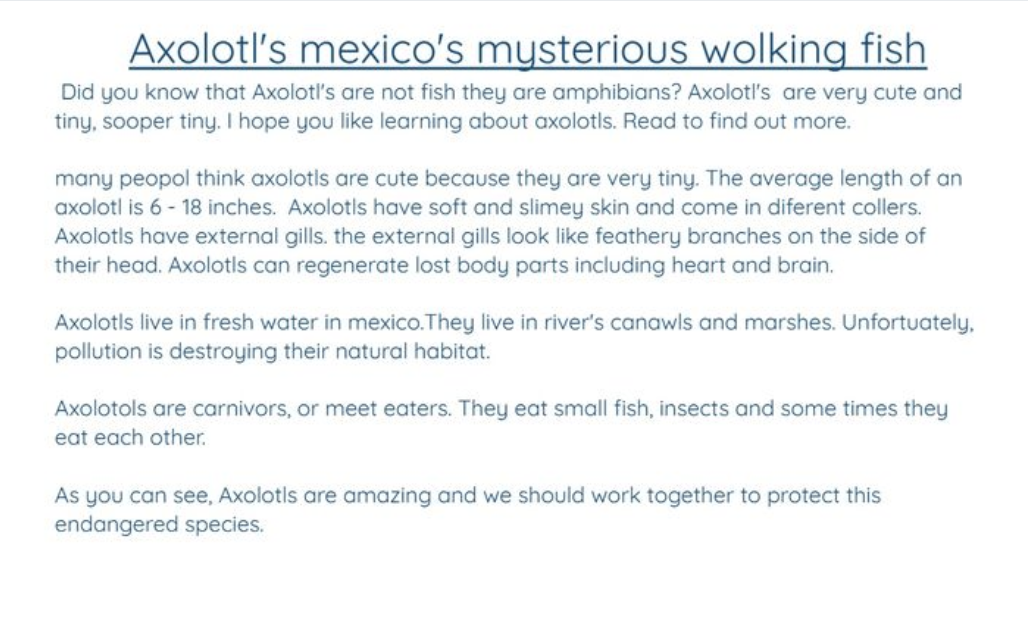
A year ago, I shared my initial foray into incorporating AI in education, moving from skepticism to a sense of pioneering spirit (you can read about it here: https://honorlearners.com/2024/02/18/from-skeptic-to-pioneer-my-journey-into-incorporating-ai-in-education/). Today, I’m thrilled to share how I brought the power of AI to my 2nd-grade learners through an engaging app smash using Magic School AI, Seesaw, and Book Creator. This experience not only boosted their writing skills but also ignited their curiosity and creativity.

The Power of Each App: A Quick Recap

Seesaw: Our digital hub, fostering student portfolios, reflection, and family communication.

Magic School AI: The educator’s ally, providing AI-powered tools for lesson planning, resource generation, and personalized feedback.

Book Creator: The creative canvas, empowering students to design and publish their own digital books.

Our App Smash Journey: Step by Step

Igniting Curiosity with Magic School AI:

We began by tapping into Magic School AI’s Informational Text tool. Our learners chose a variety of topics that sparked their interest, and Magic School AI generated informational texts that served as a springboard for their learning. This step not only provided valuable content but also demonstrated how AI can be a powerful research tool.

Research, Note-Taking, and Drafting:

After absorbing the AI-generated texts, the learners delved deeper, conducting further research and taking detailed notes. They then crafted their own informational texts, demonstrating their understanding of the topics.

Seesaw: The Digital Drafting Space:

Learners typed their drafts into Seesaw, saving them as works in progress. Seesaw’s versatility allowed them to easily revise and refine their writing. It also documented the writing process, allowing families to see the steps we took to edit and revise our writing.

Magic Student: AI-Powered Revision and Feedback:

This is where the magic truly happened. I launched a Magic Student room with three key tools: Text Proofreader, Writing Feedback, and the Raina Chatbot. To ensure feedback was aligned with our learning objectives, I uploaded a copy of our writing rubric. I shared the link to the Magic Student room in Seesaw, and learners used their tech code names (color, animal, number) to protect their identity. What’s particularly powerful about the Magic Student room is the transparency it offers teachers. Teachers can see how learners are interacting with each of the tools, identifying areas where they excel and where they needed additional support. As it was the first time, our learners were using Magic Student, and navigating multiple tabs, the following steps were done with my support. After all, they are only 7!

Text Proofreader:

Learners copied their text from Seesaw into the Text Proofreader, receiving instant feedback on grammar and spelling. We duplicated the page in Seesaw and pasted the feedback, allowing students to make direct edits. As they edited, I provided targeted instruction on spelling patterns and grammatical rules.

Writing Feedback:

Learners then copied their edited text into the Writing Feedback tool, which provided constructive feedback on the strengths and areas for growth in their writing. This feedback was copied into Seesaw, and used as a guide for revision.

Raina Chatbot:

We used a combination of the Writing Feedback tool and the Raina Chatbot to revise sections of their text, focusing on enhancing vocabulary and adding descriptive details. Some learners even expanded their texts by adding new paragraphs based on the feedback they received.

A side note: If you want more information about writing tools that can be used to support learners in Magic School Student, check out this recent Webinar hosted by both Magic School AI and Book Creator. It was inspiring enough for me to take the free Book Creator Certified Author course.

Book Creator: Publishing Our Informational Books:

With their revised texts in hand, learners copied their work into Book Creator. They then transformed their writing into beautifully designed digital books, adding images and multimedia elements. Some learners went above and beyond, incorporating tables of contents and glossaries.

Seesaw: Sharing Our Published Works:

As published authors, learners proudly shared their digital books with their families via Seesaw. We downloaded them as PDFs, uploaded them to Seesaw and added the published book link to the first page. We also shared our books by reading them to a younger class, which was a very rewarding experience.

This app smash journey had a profound impact on my 2nd-grade learners. They experienced firsthand the power of AI as a valuable tool for both learning and creativity. The learners developed a deeper understanding of the writing process, moving beyond simple drafting to engage in meaningful revision and refinement. They gained confidence in their ability to use technology to enhance their learning, becoming more comfortable and proficient with digital tools. Furthermore, they learned valuable lessons about digital citizenship, understanding the importance of protecting their identity online while engaging with AI platforms.

This experience reinforced several key takeaways regarding the integration of AI in elementary education. Firstly, AI can be a valuable and accessible tool for even young learners, fostering creativity and critical thinking. Secondly, app smashing, when thoughtfully planned, creates engaging and meaningful learning experiences that resonate with learners. Finally, providing clear guidance, support, and a structured framework is essential for the successful integration of AI, ensuring that students can maximize its benefits while navigating potential challenges.

I sincerely encourage you to explore the vast possibilities of AI within your own classroom. Take the leap and experiment with app smashing, discovering firsthand how it can transform your teaching practices and enrich your students’ learning experiences. Share your own AI integration stories in the comments below, fostering a community of educators who are passionate about leveraging technology to empower the next generation of learners. Let’s continue to learn from each other and push the boundaries of educational innovation.