
I want to begin by sincerely thanking everyone who supported me as I took the first step in sharing this blog more publicly. I’ve been incredibly moved by the kind messages and encouragement I’ve received—especially from friends and colleagues around the world. Your responses have truly humbled me and reminded me how powerful it is to share and connect through our work.
It’s moments like these that remind me of the quote in my email signature: Ubuntu – I am, because we are. This journey has never been just mine—it’s been shaped and strengthened by the community around me.
One message I received suggested I consider becoming a consultant. I had to smile at that—because it’s taken me seven years just to say out loud that I’ve been blogging! I’m not quite ready for that next step. Honestly, I find so much joy working with my students and supporting our school’s goals (and yes, sometimes gently encouraging us to stretch our goals and think bigger).
This week, a colleague stopped me in the hallway and told me how much she had learned from one of my recent ideas. She’d tried the clock matching game I shared with her own daughter—who had been struggling to tell time. It helped make the concept click for her in a fun and playful way. Moments like these are what keep me motivated.
Some colleagues have asked how I know so much about Canva. The truth is, I’ve been a Canva Pro subscriber for seven years—and I didn’t use it much at first. My real Canva learning curve came through my role as MSA Communications Lead, where I used it to create social media posts, newsletters, and content for our website.
I’ve also had access to Canva for Education for the last two years, but it’s only recently that I’ve started using it more and more in my teaching—to create worksheets, games, and other learning resources. I’ve been inspired by amazing educators who generously share their knowledge on social media—if Instagram offered PD certificates, I’d be drowning in them! One of the educators I’ve learned so much from is @teresakwant. She shares amazing Teacher Canva Hacks that have saved me time and sparked new ideas for my classroom.
Now I’m venturing into creating interactive lessons within Canva, and it feels like I’m finally unlocking its full potential—not just as a design tool, but as a powerful learning platform. This week, I stumbled upon a lesson from Canva’s Design School on creating persuasive posters (link here), which was a perfect fit for what my students are working on as they take action in their Cultural Studies class.
At first, I thought about sending my students directly to the Canva Design School course—but they’re only seven years old, and navigating the platform that way felt too complex. I looked for the lesson inside Canva for Education but couldn’t find it. So, I decided to recreate it myself as a lesson in our Canva Classroom.
This Canva Help article guided me through the process. I couldn’t find the video in the Canva YouTube app because this lesson launched this week, so I took a screenshot of the video, put it in a presentation and linked the video to that instead. I added “_popup” after “watch” and before the “?” in the URL to change the viewing experience to a fullscreen without distractions. Next, I added the lesson resources as solo work activities, so Canva automatically created copies for each student.
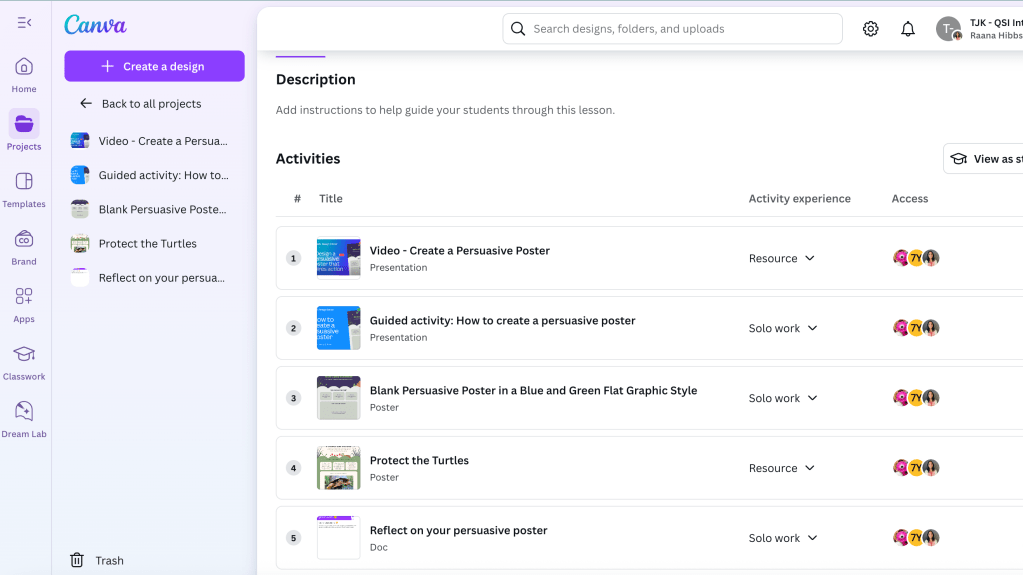
The next day, I introduced the lesson to my class and told them we’d be learning from a guest teacher—Mrs. Bel. I showed them the course in Canva Design School and explained that we’d be following the same course in our Canva Classroom. We watched the video together and practiced essential design skills—like changing font sizes, adding and resizing images, working with layers, and applying design styles. They especially loved exploring the different font styles and color combinations—it was the perfect opportunity to remind them how important it is to make design choices that match the theme and purpose of their poster.
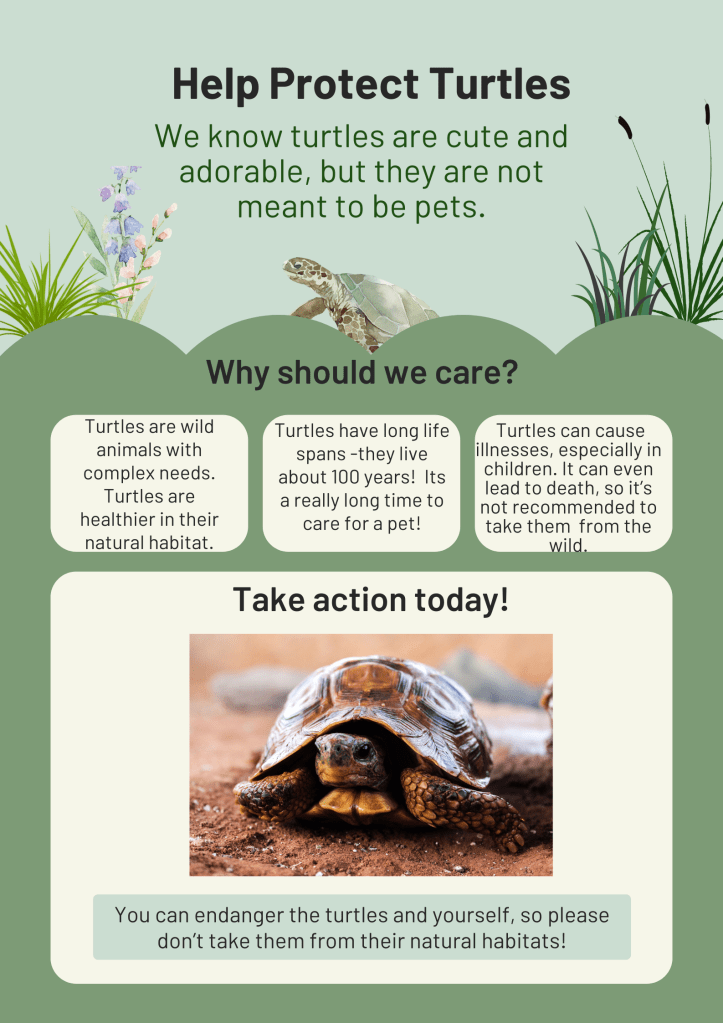
The following day, I modelled how to change the poster template that was shared. After all, our students learn best when we model how to use technology with purpose and care. I was later able to add the poster model to the lesson as a view-only resource, so learners had access to an example as a visual support.
Students then began creating their own persuasive posters using the skills they had learned. What I loved most was how the structure allowed students to work at their own pace, sharing their solo work with me before moving on. I could give timely feedback and ask for edits or mark their work as complete.
This experience reminded me how important it is to set high expectations and explicitly teach the tools and techniques learners need to succeed. Instead of simply asking students to “make a poster,” we gave them the vocabulary, modeling, and guided practice to do it with purpose and confidence. For my early finishers, I awarded an “expert” badge and gave them the chance to become peer helpers—a proud moment for them and a big help to me!

There was so much great learning packed into this experience. With permission, I’m sharing one student’s poster below. I’m so proud of the creativity, effort, and confidence I saw in my students this week.
Thank you again for being part of this journey with me. I’m learning right alongside my students—and that’s the best part.

 Honor Learners